During the month of January 2020 there
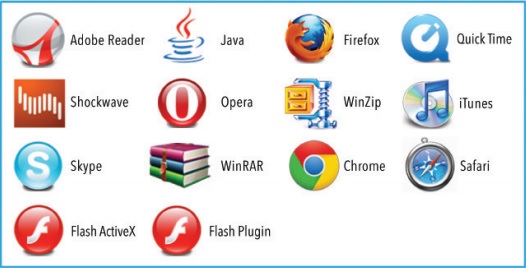
were updates from Adobe, Google, Oracle and Mozilla. You should update Firefox
and Thunderbird as soon as possible as they both have numerous vulnerabilities.
As almost
always, Adobe software has critical vulnerabilities and should be updated as
soon as possible. Both Oracle Java and Internet Explorer should also be updated
without delay.
I just
checked my Internet Explorer 11 and it was updated on patch Tuesday (Jan. 14,
2020). Internet Explorer 11 is also included in
Windows 10 and is automatically kept up to date through Windows
Update.
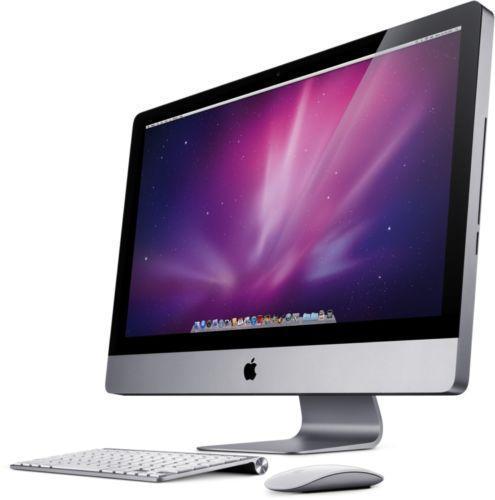
I have just installed Windows 10 on my mid 2011 iMac. I used the macOS Boot Camp utility and everything went as smooth as silk. Here is what I did:
1) Went to https://www.123myit.com/boot-camp-drivers/
and downloaded the correct Boot Camp Support drivers for my mid 2011 iMac (in
my case: version 5.1.5621). I downloaded these drivers onto a 16GB USB Flash
Drive that had been formatted as MS-DOS (FAT)/Master Boot Record. Once the
download was complete, I took out the USB Flash Drive and put it aside for
later.
2) I then opened
the Boot Camp utility and unchecked all boxes except Install Windows 8 (it may have said Install Windows 7 or 8).
3) I selected the
Boot Camp partition size that I wanted (in my case 300GB for Windows and 200GB
for macOS).
4) I installed
Windows 8.1 (I had a legitimate DVD copy that I had bought – a Windows 7 DVD
disk will also work). I installed Windows 8.1 to the “Boot Camp Partition”
which I had previously formatted.
5) I relaxed and
watched Windows 8.1 install on to iMac. Just like any normal install. At the
proper time I typed in my 8.1 25 character activation code. I had to use a
Windows keyboard and mouse as my wireless Apple keyboard and mouse were no
longer working (no drivers yet).
6) When Windows
8.1 had completely installed, I plugged in my USB flash drive and installed the
Boot Camp Support drivers (locate bootcamp.exe in the boot camp folder and
install). I then restarted the computer. The iMac rebooted and things were
looking good! The Apple keyboard and mouse were now working.
7) I actually used
the 8.1 machine for a couple of days. I installed all Windows updates and checked
to see if everything continued to work (mouse, keyboard, webcam, sound,
graphics, etc.). Everything was in perfect working order. Time for the next and
final big step: install Windows 10!
8) I went to https://www.microsoft.com/en-us/software-download/windows10 and downloaded the Windows Media Creation Tool. I ran the tool and at a certain point was presented with a screen that asked: WHAT DO YOU WANT TO DO? Two options were available: 1) Upgrade this PC now, and 2) Create installation media (USB flash drive, DVD, or ISO file) for another PC.
9) I selected UPGRADE THIS PC NOW. I then sat
back, relaxed, and watched Windows 10 install on my iMac. It was a normal
installation and went as smooth as butter.
10) After the Windows 10 installation was complete I had to reinstall the Bluetooth drivers (from the Boot Camp Support drivers: see step 6) because my Apple mouse had lost some functionality. Everything else was perfect!
During the month of December 2019 there were updates from Adobe, Apple, Google, and Mozilla. You should update Firefox and Chrome as soon as possible as they both have numerous vulnerabilities.
As almost always, Adobe Acrobat/Reader has critical vulnerabilities and it should be updated as soon as possible. Both iCloud and iTunes should also be updated without delay.
I just checked my Thunderbird email program and I did not have the most updated version. Here is what you should be looking for:
ADOBE ACROBAT/READER (latest version 2019.021.20058 here).
Keeping your PC up to date is a daunting task. If you have not checked out Patch My PC I suggest that you do so. You’ll be surprised how many third party programs need to be updated. Easy and free!!
My clients love their photos. Many still take them using
very nice DSLR and/or Point and Shoot Cameras. They buy and use many SD cards. Herein
lies a potential problem:
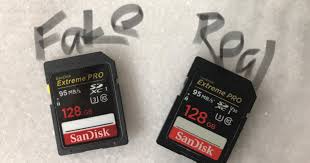
There are a lot of fake/phony/counterfeit SD cards out there.
Here are two tools (one for Mac and one for Windows) that will allow you to
verify that your memory cards are legit. Both tools are great!
Microsoft has released a Cumulative Update for Windows 10 Version 1903.
Chrome 78.0
23 October 2019
Google has released Version 78.0.3904.70 of the Chrome browser. This major update provides new features and improvements, along with security and bug fixes.
Firefox 70.0
23 October 2019
Mozilla has released Version 70.0 of the Firefox browser. The main changes in this major update include performance improvements, enhanced ability to block trackers, a Geolocation indicator appears in the address bar if used by a site, you can display a tracking report and access the enhanced Lockwise password management feature by selecting Privacy Protections from the main Menu, a Firefox Profile icon which can be removed by right-click>Remove, as well as security and bug fixes.
Avast Breach Aimed at CCleaner
22 October 2019
Antivirus company Avast has revealed that their internal network was breached last month and the attacker attempted to target CCleaner, which is owned by Avast after they bought out developers Piriform in July 2017. The attack was unsuccessful; Avast delayed CCleaner releases until a newly signed version was released a few days ago as a security update.
Windows 10 Version 1809 Issues
19 October 2019
Microsoft has updated the Windows 10 Version 1809 Known Issues Page to show that the latest Cumulative Update for Windows 10 Version 1809 can cause Windows Defender to stop functioning. Microsoft is investigating the cause, and a solution is expected by mid-November. Since no workarounds are available, MS recommends not installing the update\
Windows Updates
16 October 2019
Cumulative Updates for Windows 10 versions 1809, 1803 and 1709, along with a range of optional non-security updates.
CCleaner 5.63
16 October 2019
A new Version 5.63.7540 of the free CCleaner system cleaning utility has been released. This version is an important security update.
Update: Launching the installer may raise a Windows Smartscreen warning.
This should be safe to ignore by clicking ‘More info’ then ‘Run anyway’. To
verify your CCleaner download, see the MD5 & SHA256 hashes listed for the
ccsetup563.exe file here, and use something like OnlineMD5 to
generate a hash from your own downloaded installer, and it should match.
Acrobat Reader DC 19
16 October 2019
Adobe has released a new Version 2019.021.20047 of its free software for viewing PDF documents, now known as Acrobat Reader DC. This update provides new features, as well as security and bug fixes. The full changelist and offline installers can be found here.
MS Office 2010 End of Life
15 October 2019
Microsoft is reminding users of the Office 2010 suite that extended support – which includes security patches – will end in almost exactly one year’s time, on 13 October 2020.
Windows 10 November Update
11 October 2019
Microsoft has announced that the next Feature Update for Windows 10, which will bring it up to Version 1909, will be known as the November 2019 Update and will have a build number of 18363.418. The update will provide a few New Features but is not a major change. It will be delivered like a Cumulative Update, as opposed to previous feature updates that were like a full reinstall of Windows, which should result in fewer problems. No release date is given but the name indicates it will be publicly released within the next 6 weeks.
Firefox 69.0.3
11 October 2019
Mozilla has released Version 69.0.3 of the Firefox browser. This update provides fixes for issues with Parental Controls and Yahoo mail.
Chrome 77.0
11 October 2019
Google has released Version 77.0.3865.120 of the Chrome browser. This update provides security and bug fixes.
Flash Player 32.0
10 October 2019
Adobe has released Version 32.0.0.270 of the Flash Player plugin for browsers. To download the full offline installer, use these links depending upon your browser: Internet Explorer or Firefox or Opera. Use Windows Update to update the built-in Flash Player in IE11 under Windows 8 and 10, and Edge under Windows 10. Update to the latest version of Chrome to update its built-in Flash Player.
Microsoft Security Updates
9 October 2019
Microsoft is releasing its monthly set of Windows security updates which you can view here, and obtain via Windows Update as they become available today. This includes the latest Windows 7 Rollup and Windows 8.1 Rollup updates, as well as Windows 10 Cumulative Updates.
CCleaner 5.62
4 October 2019
A new Version 5.62.7538 of the free CCleaner system cleaning utility has been released. This update adds cleaning for recent searches in Outlook, as well as installer improvements and a preview of the next version of Easy Clean for some users.
Firefox 69.0.2
4 October 2019
Mozilla has released Version 69.0.2 of the Firefox browser. This update fixes several issues
September has passed us by! Have you applied the latest Microsoft and non-Microsoft updates? A machine with the latest patches installed will be secure and protected from malicious outside entities. Get updated now!
Windows Updates
27 September 2019
Microsoft has released a Cumulative Update for Windows 10 version 1903 which contains a range of bug fixes, including a fix for the game audio issues reported earlier.
Windows Updates
25 September 2019
Microsoft has released Cumulative Updates for Windows 10 versions 1809, 1803, 1709 and 1703. These contain a range of improvements fixes, but also list several known issues.
Windows Updates
24 September 2019
Microsoft has released a Cumulative Update for Windows 10 which addresses an Internet Explorer security vulnerability.
Windows Updates – Start Menu & Desktop Search Issues Resolved
22 September 2019
Microsoft has updated the Known Issues page for Windows 10 version 1903 to note that the general Start menu and Desktop Search issues reported by users last week due to the latest Windows 10 update are ‘Resolved’. The resolution comes in the form of MS saying it can’t detect any significant Search or Start issues affecting users.
Chrome
77.0
19 September 2019
Google has released Version 77.0.3865.90 of the Chrome browser. This update provides security and bug fixes.
Firefox 69.0.1
19 September 2019
Mozilla has released Version 69.0.1 of the Firefox browser. This update fixes several issues.
Windows
Updates – Windows Defender Issues
19 September 2019
There are now numerous reports on the Microsoft support forums that Windows Defender is not working properly after the last update. Selecting a Full Scan and clicking the ‘Scan Now’ button results in only 8 files being scanned before it stops and announces that no threats have been found.
Update: The workaround at the moment is to use the Custom Scan option, and select your hard drive for a full scan of the files on it.
Update 2: The latest definition update for Defender fixes this issue. Check for updates under Windows Update and it will install automatically as usual.
Windows Updates – WiFi Issues
16 September 2019
Microsoft has now added another bug to the general Known Issues page for Windows 10 version 1903. This one affects Intel Centrino 6205/6235 and Broadcom 802.11ac WiFi cards – the update can disable WiFi altogether. The workaround is to disable and re-enable the WiFi adapter in Device Manager, but this only works until you reboot. MS is preventing systems with this hardware from upgrading to the latest update, and no ETA for a fix is given.
Windows Updates – Audio-Related Issues
15 September 2019
Microsoft has listed an audio bug in the Known Issues section of the latest Windows 10 version 1903 update (KB4515384). The bug can result in audio being quieter in certain games, and MS has provided a workaround which involves disabling multi-channel audio in the game(s), as well as disabling multi-channel/virtual surround audio in any third party audio control panels, until a fix can be issued later this month. Microsoft has also released an Update that addresses a problem with USB audio 2.0 multi-channel microphones. If Windows detects that you have such a device, the update will download via Windows Updates.
Fixing Search Issues in Windows 10
13 September 2019
Aside from acknowledging the bugs caused by recent Windows 10 Updates, Microsoft has now also released a Support Article that covers several different methods for attempting to fix Search-related issues.
iTunes 12.10
13 September 2019
Apple has released a new Version 12.10 of the iTunes software. If you don’t wish to use the Windows Store to download iTunes, direct download links are provided: 64-bit Version, 32-bit Version. This version adds iOS 13 support, as well as security and bug fixes.
Windows
Updates
12 September 2019
Once again there are mixed reports about the latest Cumulative Update for Windows 10 version 1903 (KB4515384), such as those on Reddit. These include continued search problems and Start Menu errors. At the moment, Microsoft has not listed any Known Issues on the Update’s Page. Update: Microsoft now acknowledges these issues in the latest update on their general Windows 10 Issues page. No ETA for a fix is provided.
Chrome 77.0
11 September 2019
Google has released Version 77.0.3865.75 of the Chrome browser. This major update provides new features and improvements, along with security and bug fixes.
Microsoft Security Updates
11 September 2019
Microsoft is releasing its monthly set of Windows security updates which you can view here, and obtain via Windows Update as they become available today. This includes the latest Windows 7 Rollup and Windows 8.1 Rollup updates, as well as Windows 10 Cumulative Updates.
Update: The latest Windows 10 Cumulative Update contains a fix for the Cortana High CPU Usage bug. There also seems to be a slight change to the way Windows Update now works in Windows 10.
Flash Player 32.0
11 September 2019
Adobe has released Version 32.0.0.255 of the Flash Player plugin for browsers. To download the full offline installer, use these links depending upon your browser: Internet Explorer or Firefox or Opera. Use Windows Update to update the built-in Flash Player in IE11 under Windows 8 and 10, and Edge under Windows 10. Update to the latest version of Chrome to update its built-in Flash Player.
Windows Updates
4 September 2019
Microsoft has acknowledged the bug in the latest update for Windows 10 Version 1903 which can result in Cortana using large amounts of CPU resources unnecessarily. However, it has not done this in the normal manner, which is to add it to the list of Known Issues on the Update’s Page, rather it has posted it on Twitter.
Office Updates
4 September 2019
Microsoft has released its latest Updates for the Office Suite.
Firefox 69.0
4 September 2019
Mozilla has released Version 69.0 of the Firefox browser. The changes in this major update include improved CPU prioritization in Windows 10, strengthening of Enhanced Tracking Protection, the Block Autoplay setting now has the option of blocking audio and video, removal of the ‘Always Activate’ option for the Flash plugin, and the disabling of userChrome.css and userContent.css loading by default – if you want any customizations in these files to execute at launch, you need to set toolkit.legacyUserProfileCustomizations.stylesheets to True in about:config. This update also provides security and bug fixes.
A while back I purchased a new phone. I first considered the carrier and eventually chose Google Fi. I did not make a mistake! With Google Fi you pay $20 per month for unlimited talk and text, and a monthly flat rate of $10 per gigabyte of data (up to 6 GB). After 6GB of data there is no charge for any additional data. In effect an unlimited amount of data!
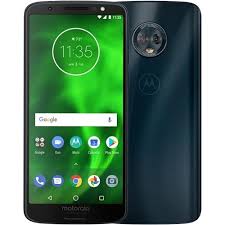
I next considered the phone and chose the Motorola Moto G6 ( don’t buy it from Motorola for $249.99, it’s only $99 from Google Fi). I am not going to pay $1,000 for the latest flagship phone! The phone is superb and is all that I need. I live in a somewhat obscure area of Tennessee and the coverage is great. I’m on WiFi most of the time and my data usage is usually quite low. My monthly bill comes to around $25. You owe it to yourself to “check out” Google Fi. Here is my referral code if you are interested:DMYFPX. After the referral code has been active for 30 days, you and I will both get $20 Fi credit!
Here are the most important June patches for common third party programs. A few Microsoft updates included! Get updated as soon as possible.
Windows Updates
June 28, 2019
Microsoft has released new Cumulative Updates for Windows 10 versions 1903 to 1607.
Firefox 67.0.4
21 June 2019
Mozilla has released Version 67.0.4 of the Firefox browser. This update provides a security fix.
Windows Updates
19 June 2019
Microsoft has released a new Cumulative Update for Windows 10 versions 1809 to 1607.
Firefox 67.0.3
19 June 2019
Mozilla has released Version 67.0.3 of the Firefox browser. This update provides a security fix.
Chrome 75.0
19 June 2019
Google has released Version 75.0.3770.100 of the Chrome browser. This update provides security and bug fixes.
Chrome 75.0
14 June 2019
Google has released Version 75.0.3770.90 of the Chrome browser. This update provides security and bug fixes.
Google Addresses Chrome Concerns
14 June 2019
Google has issued a clarification in response to user concerns over the way changes in Chrome’s extension system will effectively prevent adblockers from working correctly.
Adobe has released Version 32.0.0.207 of the Flash Player plugin for browsers. To download the full offline installer, use these links depending upon your browser: Internet Explorer or Firefox or Opera. Use Windows Update to update the built-in Flash Player in IE11 under Windows 8 and 10, and Edge under Windows 10. Update to the latest version of Chrome to update its built-in Flash Player.
Firefox 67.0.2
12 June 2019
Mozilla has released Version 67.0.2 of the Firefox browser. This update provides a range of bug fixes.
Chrome 75.0
5 June 2019
Google has released Version 75.0.3770.80 of the Chrome browser. This update provides improvements, as well as security and bug fixes.
Firefox 67.0.1
5 June 2019
Mozilla has released Version 67.0.1 of the Firefox browser. This update introduces Mozilla’s various services and products on in-browser screens and prompts. It also enables Enhanced Tracking Protection by default for new users, while existing users can turn it on by going to Options>Privacy & Security>Custom, ticking Cookies, and selecting ‘Third-party trackers’.
I was a bit behind in May so I’ve also thrown in the latest updates thus far in June. A well patched machine is a beautiful thing! Get your system updated as soon as possible.
Chrome
75.0
5 June 2019
Google has released Version 75.0.3770.80 of the Chrome browser. This update provides improvements, as well as security and bug fixes.
Firefox 67.0.1
5 June 2019
Mozilla has released Version 67.0.1 of the Firefox browser. This update introduces Mozilla’s various services and products on in-browser screens and prompts. It also enables Enhanced Tracking Protection by default for new users, while existing users can turn it on by going to Options>Privacy & Security>Custom, ticking Cookies, and selecting ‘Third-party trackers’.
iTunes
4 June 2019
Apple has announced that the iTunes app will be discontinued with the launch of iOS 13, likely in September 2019. Itunes’ functions will be split into three separate apps: Music, TV and Podcasts. There are concerns regarding what will happen to music you already own, as well as playlists – Apple says that the Music app will allow access to these, including downloading them, and you can still purchase music to own within the Music app, as the iTunes store will reside there. However, Apple is not killing off iTunes for Windows; as reported by Wired: “Apple clarified Monday that iTunes for Windows would continue on its current state.”
Windows 10 Updates
30 May 2019
Microsoft has released a new Cumulative Update for Windows 10 version 1903.
iTunes 12.9.5
29 May 2019
Apple has released a new Version 12.9.5 of the iTunes software. If you don’t wish to use the Windows Store to download iTunes, direct download links are provided: 64-bit Version, 32-bit Version. Aside from security fixes, a full changelist is not yet available.
Windows Updates
29 May 2019
Microsoft has released a new Cumulative Update for Windows 10 versions 1709 and 1703.
Opera 60.0
25 May 2019
The Opera browser has been updated to Version 60.0.3255.109. This update provides bug fixes.
Chrome 74.0
22 May 2019
Google has released Version 74.0.3729.169 of the Chrome browser. This update provides security and bug fixes.
Windows 10 May 2019 Update
22 May 2019
Microsoft has released the Windows 10 May 2019 Update, also known as Windows 10 version 1903. This free major Feature Update is being rolled out gradually, and is currently only available if you manually check for Updates in Windows Update. It provides a range of new features, such as those detailed here. There are also a range of Known Issues in Windows 10 version 1903.
Update: You can manually download the full 1903 Update or create an ISO of it by going here.
Windows 10 Updates
22 May 2019
Microsoft has released a new Cumulative Update for Windows 10 versions 1809 and 1803.
Firefox 67.0
21 May 2019
Mozilla has released Version 67.0 of the Firefox browser. Changes in this major update include improved performance in several areas, new options to block known cryptominers and fingerprinters under Options>Content Blocking, improved security and customization for private browsing, a range of minor feature improvements, along with security and bug fixes. Note that the new WebRender GPU-accelerated 2D engine is disabled by default but will be gradually enabled on
Windows Updates
20 May 2019
Microsoft has released a new Cumulative Update for Windows 10 which addresses an issue that may prevent access to some gov.uk websites that don’t support HTTP Strict Transport Security (HSTS) when using Internet Explorer 11 or Microsoft Edge.
Opera 60.0
18 May 2019
The Opera browser has been updated to Version 60.0.3255.95. This update provides interface improvements and bug fixes.
Chrome 74.0
15 May 2019
Google has released Version 74.0.3729.157 of the Chrome browser. This update provides security and bug fixes.
CCleaner 5.57
15 May 2019
A new Version 5.57.7182 of the free CCleaner system cleaning utility has been released. Changes in this version include a new simplified Easy Clean option, with the original cleaner renamed Custom Clean, a new tab in Startup to manage Windows Services, a new Preferred Home Screen setting, updater and installation improvements, as well as bug fixes.
Adobe has released a new Version 2019.012.20034 of its free software for viewing PDF documents, now known as Acrobat Reader DC. This update provides new features as well as security and bug fixes.
Flash Player 32.0
15 May 2019
Adobe has released Version 32.0.0.192 of the Flash Player plugin for browsers. To download the full offline installer, use these links depending upon your browser: Internet Explorer or Firefox or Opera. Use Windows Update to update the built-in Flash Player in IE11 under Windows 8 and 10, and Edge under Windows 10. Update to the latest version of Chrome to update its built-in Flash Player.
Opera 60.0
14 May 2019
The Opera browser has been updated to Version 60.0.3255.84. This update addresses a GPU bug that causes black screen crashes at startup.
Firefox 66.0.5
8 May 2019
Mozilla has released Version 66.0.5 of the Firefox browser. This update provides additional fixes for the disabled add-ons issue.
O&O Shutup10 1.6
8 May 2019
O&O Software has released Version 1.6.1402 of the free O&O Shutup10 utility, designed to provide greater control over Windows 10’s privacy and update related settings. This version adds support for the upcoming Windows 10 1903 update, as well as providing bug fixes.
Firefox 66.0.4
6 May 2019
Mozilla has released Version 66.0.4 of the Firefox browser. This update fixes the disabled add-ons issue.
Firefox Add-on Issues
5 May 2019
Firefox is experiencing Add-on Problems due to the accidental expiry of a certificate used to sign add-ons. This results in the following message bar appearing: One or more installed add-ons cannot be verified and have been disabled. Mozilla is working on a proper fix, but for now, a workaround is to go to Firefox Options>Privacy & Security, scroll down and tick the ‘Allow Firefox to send technical and interaction data to Mozilla’ option, then tick the ‘Allow Firefox to install and run studies’ option. It may take up to 6 hours for this Study hotfix to be downloaded and applied to Firefox.
Update: Some people are
reporting this as being fixed, but my Firefox is still affected. One unsupported
workaround that works straight away is provided here.
Windows Updates
4 May 2019
Microsoft has released another new Cumulative Update for Windows 10 version 1809.
Windows Updates
2 May 2019
Microsoft has released a new Cumulative Update for Windows 10 version 1809.
Chrome 74.0
2 May 2019
Google has released Version 74.0.3729.131 of the Chrome browser. This update provides security and bug fixes.