 Hello everyone,
I love browsers (especially Mozilla Firefox and Google Chrome), and I love to bookmark but I don’t like the “bookmark bar”. Bookmark bars take up space and I don’t like where they are located regardless of whether they are on the side, top, or bottom of the window.
Today I would like to show you how to add a great little bookmark button to the Chrome browser toolbar. Then, all you have to do is just click on this button and you will be able to access your bookmarks from a drop down menu. How cool is that?
Follow these three simple steps:
1) Right click on the Chrome shortcut icon
2) Choose “Properties”
3) In the “Target” box after the “chrome.exe” leave a space and then type – -bookmark-menu (see photo). That’s “space, dash, dash, bookmark, dash, menu”
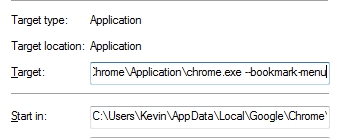
4) The resulting “Target” string will point to:
C\Users\Your Name\AppData\Local\Google\Chrome\Application\chrome.exe – –bookmark-menu
You’re done! Now every time you bookmark a site in your Chrome browser you can access that site via the new drop down menu button on the toolbar. Enjoy!
Professor Randy says: Simple tweaks can save you time!




10:51 am on September 29th, 2012 1
I did this and don’t see a dropdown menu. Where is it supposed to be??????????????????????????
8:26 pm on September 29th, 2012 2
Thanks for the comment Alex. The option that you are talking about has been removed by Google but please read:
Ages ago, Google Chrome had a command line flag that allowed users to enable a drop-down bookmarks menu. It’s a feature that power users loved, since it provided quick access to favorite sites without having to display the bookmarks bar and eat up extra vertical pixels.
But Google later backtracked and removed the toggle — not necessarily a huge problem since several extensions are available that provide similar functionality, but all of those chew up a little bit of RAM. The menu was, for all intents and purposes, footprint-free.
Now the bookmarks menu appears to be on its way back to Google Chrome. This time it’s not even hidden behind a flag. Rather, it’s integrated into the customize menu (looks like three horizontal lines) just below the new tab and window options. Hover over bookmarks and your toolbar’s contents slide into view. You can then pause on subfolders to drill down and click a link to open it in the current tab.
Randy Knowles
11:17 am on January 17th, 2014 3
I installed Chrome on my wife’s desktop and it came with a menu bar which included bookmarks imported from Firefox. The next day I installed Chrome (same version as my wife’s) on my desktop and it had a bookmarks toolbar, which I don’t like. How do I get the dropdown menu version? I’ve tried Randy Knowles’ procedure but I get a message box saying that the amended URL address for Chrome is not legal. What is a fellow to do?
12:44 pm on July 24th, 2019 4
this is not e
working in the 2019 win 10 and google chrome
5:04 pm on August 14th, 2020 5
This procedure doesn’t work in 2020. Plus, I don’t want it added to the shortcut. I want a drop down bookmarks menu button built in to Google Chrome so no matter how it’s activated it’s always there. It was there on my last PC, but the new one will not let me put it there. You can get to your bookmarks by the bar, which I hate, or by the three dots menu, but that is clunky and stupid. A favorites menu should be easily accessible with a button. IE works that way and Google Chrome worked that way on my last PC. So why not now? Are they idiots!!!!!!!!!!!!!!!!!!!!!!!!!!!!!!!!!!!!!!!!!!!!!!!
10:03 pm on August 21st, 2020 6
Hi David,
Frustrating I know. Things will change though because Google is getting many complaints.
Best wishes!
7:40 am on September 14th, 2020 7
There used to be this feature. Just recently due to forced windows update I had to (reset) desktop (Dell XPS 8930) and now after downloading chrome it does not have this feature?
You can get to your bookmarks by the bar, which I hate, or by the three dots menu, but that is clunky and stupid. -DAVID QUINN
I agree David.